Configuring an External OIDC Identity Provider (IdP)
DMS supports using an External OIDC Identity Provider (IdP) for authentication services. Authentication settings are specified in the appsettings.json, located in the server folder of the installation folder. Below is an example for setting up an External OIDC IdP in appsettings.json:
"ExternalProvider": {
  "Enabled": true,
  "Name": "Test External OIDC IdP",
  "ClientId": "test-client-id",
  "Authority": "test-authority",
  "UsePkce": true,
  "ResponseType": "code",
  "ResponseMode": "form_post",
  "CallbackPath": "/signin-oidc",
  "ClaimType": "email"
}
| Setting key: (default) value | Explanation |
|---|---|
| Enabled:false | Enables authentication service from an External OIDC IdP. When set to false, you cannot use an External OIDC IdP. When set to true, you can. |
| Name: | Name of the External OIDC IdP. This name is displayed on the DMS login screen. |
| ClientId: | Unique client id of the External OIDC IdP. |
| Authority: | Authority url to make OIDC calls. |
| UsePkce: true | Enables (true) or disables (false) the use of the Proof Key for Code Exchange (PKCE) standard. |
| ResponseType: "code" | Response type of OIDC calls. |
| ResponseMode: "form_post" | Response mode of OIDC calls. |
| CallbackPath: “/signin-oidc” | The request path within the base path where the user-agent will be returned. |
| ClaimType :”email” | Claim type to request. |
After a successful setup of the External OIDC IdP, it will be displayed on the DMS login screen as an additional authentication option (next to the Windows authentication and the username/password login).
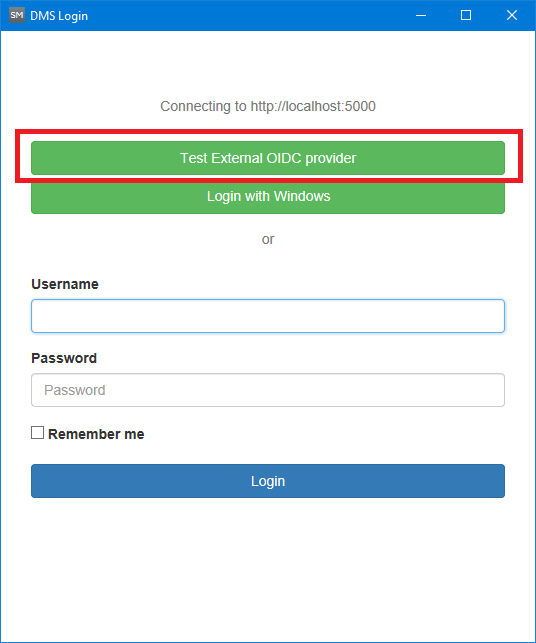
Adding a third party authentication service. click to enlarge